
WASD keys not working guide, last updated: October 15, 2026
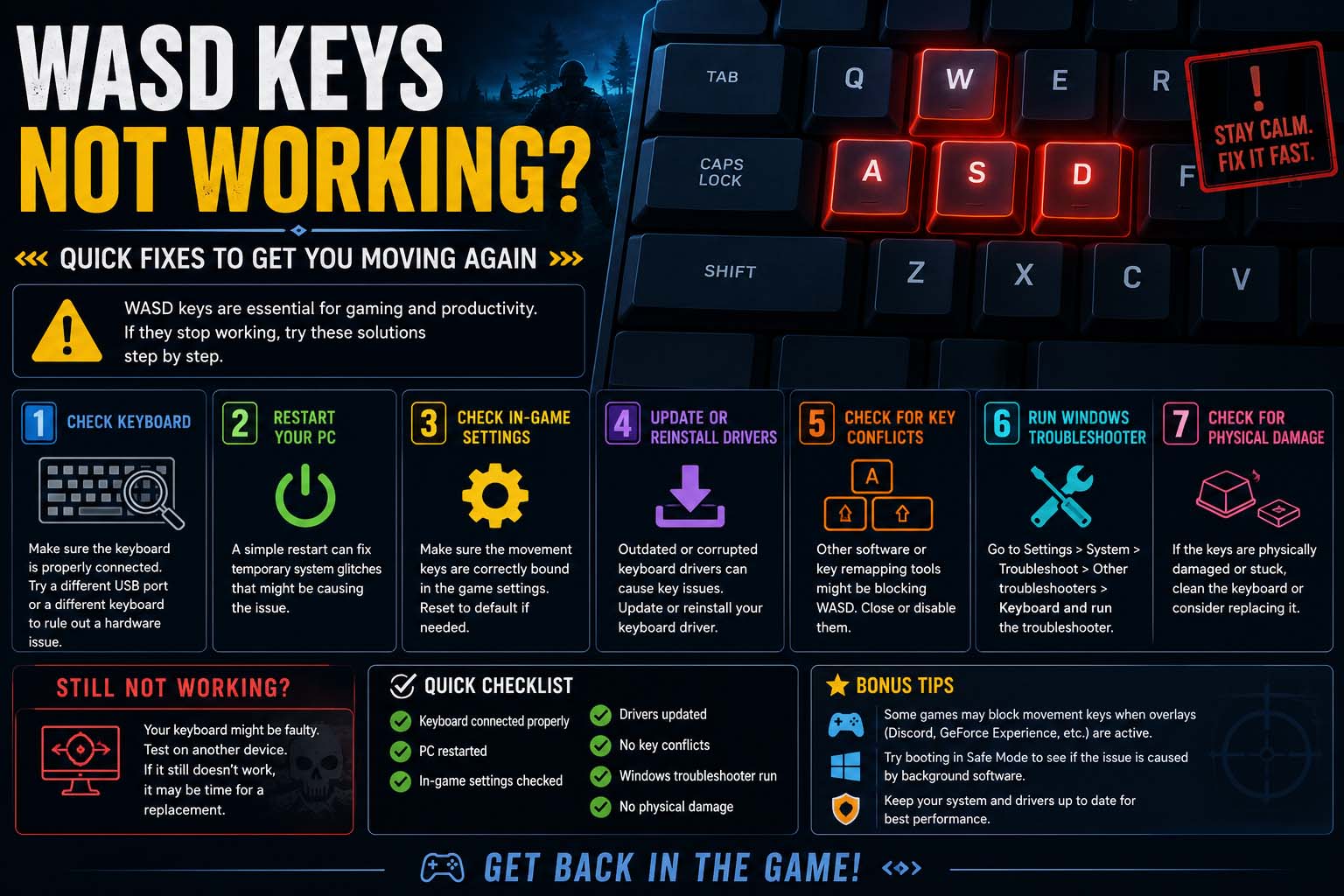
WASD keys not working is a common problem, and it is usually easy to fix. In most cases, the cause is a setting, a driver or a keyboard mode, not a broken keyboard. However, the right fix depends on where the problem happens. Therefore, this guide starts with a one-minute test and then gives clear steps for Windows, for one game and for gaming keyboards.
WASD Keys Not Working: Quick Test
First, find out where the problem is. Open Notepad and press W, A, S and D. Then use the matching fix below.
| Test Result | What It Means | Go To |
|---|---|---|
| Keys fail in Notepad too | Windows, driver or keyboard problem | Windows fixes |
| Keys work in Notepad, but fail in one game | Game setting or controller conflict | Game fixes |
| Only a gaming keyboard fails | Mode or profile | Gaming keyboard fixes |
You can also test with the On-Screen Keyboard. According to a Microsoft Q&A answer, press Windows + R, type osk and press Enter. If the keys work there, the physical keyboard or its connection is the likely cause.
Common Causes of Movement Key Problems
Several causes can stop movement keys. For example, these are the most common.
- First, a Windows setting, such as Filter Keys, is on.
- Second, the keyboard driver is old or damaged.
- Also, the game has the wrong key bindings.
- Similarly, a controller or another device overrides the keyboard.
- In addition, gaming software or a keyboard mode changed the keys.
- Finally, dust, a loose cable or a worn switch affects the keys.
Fix WASD Keys Not Working in Windows
Work through these steps in order. Then test the keys after each one. The steps come from Guiding Tech and the Microsoft answer above.
- Restart and reconnect. Restart the PC and try another USB port. For a wireless keyboard, charge or replace the batteries.
- Turn off Filter Keys. Next, open Settings, go to Accessibility, choose Keyboard and switch off Filter Keys.
- Run the troubleshooter. Then press Windows + R, type
msdt.exe -id DeviceDiagnosticand follow the prompts. Guiding Tech notes that the old Keyboard troubleshooter no longer exists. - Update or reinstall the driver. Open Device Manager, expand Keyboards, right-click your keyboard and choose Update driver. Otherwise, choose Uninstall device, restart and let Windows reinstall it.
- Check power management. After that, in the keyboard’s Properties, open the Power Management tab and uncheck “Allow the computer to turn off this device to save power”.
- Turn off Fast Startup. Also, in Power Options, choose “Choose what the power buttons do” and uncheck “Turn on fast startup”.
- Install Windows updates. Finally, open Windows Update and install anything waiting.
If none of this works, try another keyboard. If the second keyboard works, the first one has failed.
Fix WASD Keys Not Working in One Game
When the keys work in Notepad but not in a game, the game is usually the cause. Therefore, try these fixes.
- Check the key bindings. First, open Settings, then Controls, and make sure Forward, Left, Back and Right use W, A, S and D. If not, reset to the defaults.
- Unplug controllers. Some games favor a connected controller, wheel or flight stick. Therefore, unplug them and restart the game.
- Close other programs. For example, overlays, macro tools and key remappers can block input. Close them one by one and test.
- Verify the game files. Lastly, use your launcher, such as Steam, to check for damaged files.
If the game also closes by itself, read why does my game keep crashing. In addition, players who see delayed movement may need to lower ping in games, because lag can look like dead keys.
Fix WASD Keys Not Working on a Gaming Keyboard
Gaming keyboards add modes and software that can change keys. For instance, Logitech’s Game Mode turns off the Windows, Menu and Fn keys on some models, according to a Logitech support page. Another Logitech page says its software can turn off other keys in a profile too.
- First, press the Game Mode key and see if the light changes.
- Then open your keyboard software, such as G HUB, Synapse or iCUE.
- Next, check the active profile for disabled keys, macros or remaps.
- Finally, reset the profile to default and test again.
For competitive shooters, also review the best valorant settings once your keys work.
When the Keyboard Is Broken
Sometimes the switch itself has failed. In that case, clean around the keys with compressed air and a soft brush. Do not spray liquid on the keyboard. After that, test each key on a free online keyboard tester. If one key never registers, the switch is probably damaged. Likewise, if the keys fail even in the BIOS, hardware is the likely cause, so repair or replace the keyboard.
WASD Keys Not Working FAQ
Why are my WASD keys not working?
Overall, the cause is often a setting such as Filter Keys, an old driver, a game binding, a keyboard mode or a controller. Hardware failure is less common.
Why do WASD keys work in Notepad but not in a game?
In that case, the keyboard is fine. Instead, check the game’s key bindings and unplug any controller.
Can Filter Keys stop WASD from working?
Yes. In fact, Microsoft’s support answer lists turning off Filter Keys as one fix for keys that do not respond.
Can a gaming keyboard mode disable keys?
Yes. In fact, Game Mode and software profiles can turn keys off, so check both.
Should I replace the keyboard?
Not yet. First, try another keyboard and the steps above. Then replace it only if the problem stays.
Conclusion
When WASD keys are not working, start with the Notepad test. Next, follow the Windows, game or gaming keyboard steps that match the result. Finally, try another keyboard before you buy a new one, because most problems come from settings.
Sources: Guiding Tech, Microsoft Q&A, Logitech Support, Logitech G310 Support.