
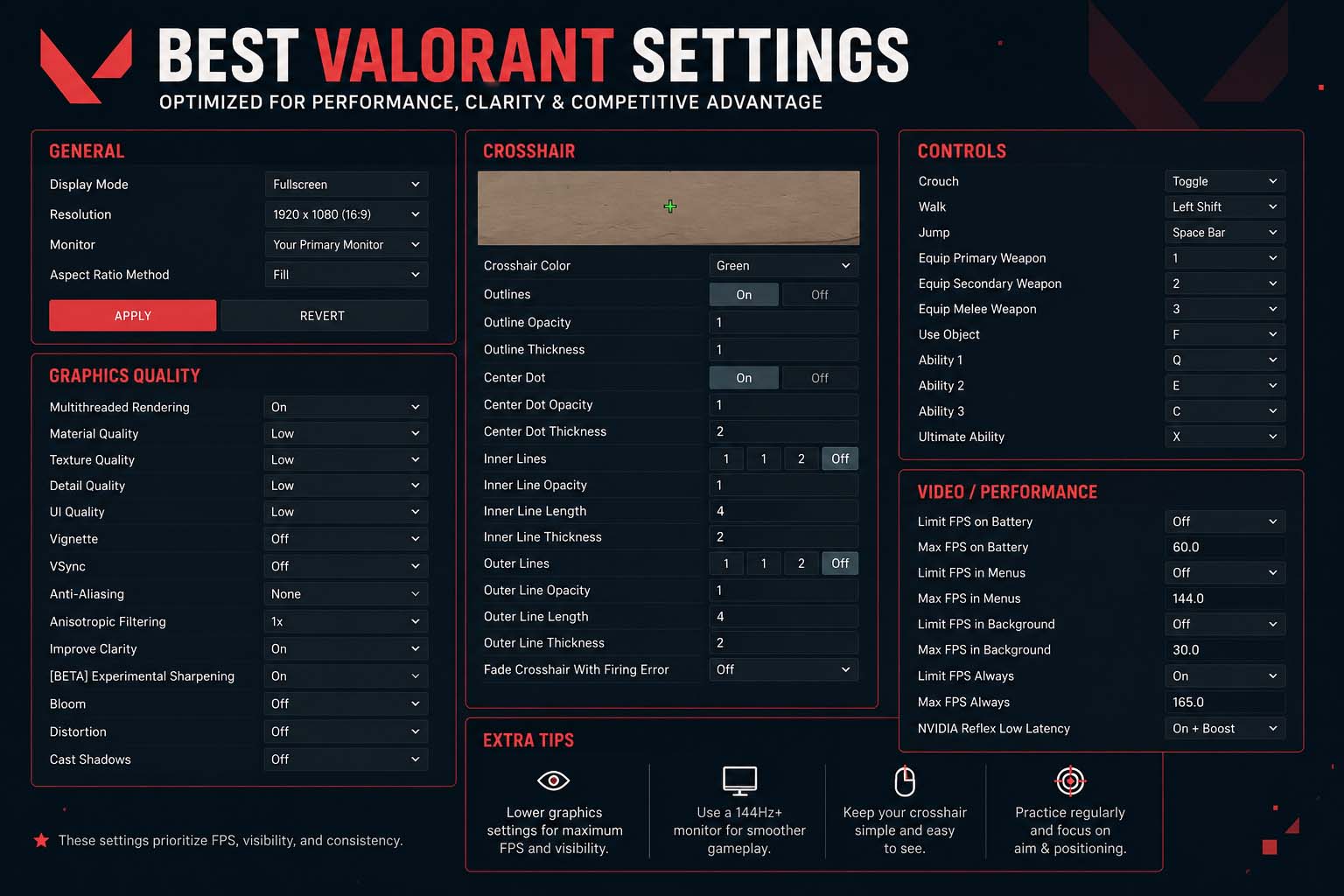
Best Valorant Settings (2026 Guide): Boost FPS, Improve Visibility, and Play Like a Pro

Whether you’re trying to climb the Competitive ladder or simply enjoy smoother gameplay, choosing the best valorant settings can make a noticeable difference. While Valorant is designed to run well on most PCs, the right combination of graphics, video, mouse, and crosshair settings can improve visibility, reduce input delay, and help you react faster during intense gunfights.

The best settings aren’t always the highest-quality visuals. Competitive players usually prioritize stable frame rates, low latency, and clear enemy visibility over visual effects. If you’re just starting out or looking to fine-tune your setup for the latest 2026 updates, this guide covers everything you need to know.


Best Valorant Settings for Competitive Play

There isn’t a single setup that works for every player. Your hardware, monitor refresh rate, and personal preference all play a role. Still, these settings offer an excellent balance between performance and visual clarity.

SettingRecommended
Display ModeFullscreen
ResolutionNative Monitor Resolution
FPS LimitUnlimited or Slightly Above Monitor Refresh Rate
Multithreaded RenderingOn
VSyncOff
NVIDIA ReflexOn + Boost (if supported)
Raw Input BufferOn
Mouse AccelerationOff (Windows)

These settings minimize input lag while keeping gameplay responsive. If your PC consistently delivers high FPS, you’ll notice smoother aiming and better tracking during firefights.


Best Valorant Graphics Settings for Maximum FPS

Many players search for the best Valorant graphics settings because smoother gameplay often leads to greater consistency and improved performance. Lower graphics don’t necessarily make you a better player, but they can remove distractions and help maintain a stable frame rate.

General Graphics Settings

OptionRecommended
Material QualityLow
Texture QualityLow
Detail QualityLow
UI QualityLow
VignetteOff
VSyncOff
Anti-AliasingNone or MSAA 2x
Anisotropic Filtering2x or 4x
Improve ClarityOn
Experimental SharpeningOn (Optional)
BloomOff
DistortionOff
Cast ShadowsOff

These options reduce unnecessary visual effects without affecting gameplay mechanics.


Why Low Graphics Are Popular

Professional Valorant players often use lower graphics settings for three main reasons:

  • Higher and more stable FPS
  • Cleaner visuals with fewer distractions
  • Lower input latency during fights

A stable 240 FPS usually provides a better competitive experience than fluctuating between 180 and 300 FPS.


Best Valorant Video Settings for Better Visibility

The best valorant video settings focus on making enemies easier to spot while keeping gameplay fluid.

Display Settings

  • Display Mode: Fullscreen
  • Resolution: Native
  • Aspect Ratio Method: Fill
  • Monitor Selection: Primary Monitor
  • Limit FPS on Battery: Off
  • Limit FPS in Menus: Optional
  • Limit FPS in Background: On

Playing in fullscreen mode gives the game exclusive access to your display, which often reduces latency compared to windowed modes.

If your system struggles during heavy fights, lowering the FPS cap slightly can improve frame consistency instead of allowing constant fluctuations.


Best Mouse Settings for Accurate Aim

Good aim starts with consistent sensitivity.

While copying a professional player’s settings may seem tempting, your own comfort matters more.

SettingRecommended Range
DPI400–800
In-Game Sensitivity0.25–0.45
Scoped Sensitivity1.0
Polling Rate1000 Hz

Instead of changing your sensitivity every few matches, stick with one setup for at least a week. Your muscle memory develops over time, and constant adjustments usually slow your progress.


Crosshair Settings That Improve Accuracy

Crosshairs are highly personal, but simple designs generally work best.

Many competitive players prefer:

  • White, Cyan, Green, or Yellow color
  • Small center gap
  • Thin outlines or none at all
  • No movement error
  • No firing error

The goal is to keep the crosshair visible without blocking your view of enemy heads.

Experiment during Deathmatch before taking a new crosshair into Ranked games.


Best Settings for Valorant on Low-End PCs

Not everyone has a gaming PC capable of running hundreds of frames per second. Fortunately, Valorant remains one of the most optimized competitive shooters available.

For lower-end systems:

  • Lower Material Quality to Low
  • Disable Bloom
  • Turn off Distortion
  • Disable Shadows
  • Close unnecessary background applications
  • Update graphics drivers regularly

If your FPS still drops during team fights, lowering your resolution slightly can provide another performance boost.

Interestingly, players who enjoy exploring different multiplayer experiences sometimes also look for games to play when bored, but optimizing your system first can make returning to Valorant feel like a brand-new experience.


Network Settings That Reduce Lag

Graphics settings matter, but network performance can be just as important.

To reduce latency:

  • Use a wired Ethernet connection whenever possible.
  • Close downloads before playing.
  • Select the closest Valorant server.
  • Avoid streaming large videos during matches.
  • Restart your router occasionally if ping becomes unstable.

Even if your FPS is high, network lag can still cause missed shots and delayed hit registration.


Graphics Quality vs Competitive Performance

Many new players wonder whether higher graphics improve gameplay.

Here’s a quick comparison.

High GraphicsCompetitive Graphics
Better visual effectsHigher FPS
Sharper environmentsCleaner visibility
More GPU usageLower latency
Better for casual playBetter for Ranked matches

For most players who care about climbing the ranked ladder, competitive settings offer the better overall experience.


Finding the Right Balance

The best settings for valorant aren’t about copying professional players exactly. Instead, they’re about finding a setup that matches your hardware while keeping your aim consistent.

Start with the recommendations in this guide, play several matches, and adjust only one or two settings at a time. That way, you’ll know exactly which changes help your performance instead of guessing after every game.

Advanced Performance Tweaks for Serious Players

Once you’ve settled on your core setup, it’s worth looking at a few extra settings that many players overlook. These won’t instantly improve your rank, but they can make your gameplay feel more consistent over time.

Audio Settings

Sound plays a huge role in Valorant. Footsteps, ability usage, and spike interactions all provide valuable information.

Here are some recommended audio settings:

SettingRecommended
Master Volume80–100%
Sound Effects100%
Voice-OverPersonal Preference
Music Volume0–20%
Agent FlavorOff (Optional)
HRTFOn

Turning on HRTF (Head-Related Transfer Function) helps many players identify the direction of footsteps more accurately when using stereo headphones.

Minimap Settings

The minimap is another feature that deserves attention.

For most players, these settings work well:

  • Rotate: Based on preference
  • Keep Player Centered: Off
  • Minimap Size: 1.1–1.2
  • Minimap Zoom: 0.9–1.0
  • Vision Cones: On
  • Show Map Region Names: Always

A slightly larger minimap makes it easier to spot teammate positions and utility without taking your eyes off the action for long.


Settings Based on Your Hardware

Your PC specifications should influence your configuration. There’s no reason to copy someone with a high-end gaming rig if you’re playing on an entry-level laptop.

Entry-Level PCs

Prioritize:

  • Low graphics
  • Shadows Off
  • Bloom Off
  • Distortion Off
  • Native or slightly reduced resolution
  • Stable FPS over visual quality

Mid-Range PCs

You can usually enable:

  • Improve Clarity
  • Experimental Sharpening
  • 2x or 4x Anisotropic Filtering
  • Native resolution

High-End PCs

If your system consistently exceeds your monitor’s refresh rate, you can increase texture quality without sacrificing performance. Even then, many competitive players still keep most effects disabled because cleaner visuals make enemies easier to track.


Common Mistakes Players Make

Many players spend hours changing settings instead of improving their gameplay.

Avoid these common mistakes:

  • Copying a professional player’s sensitivity without testing it.
  • Changing settings after every bad match.
  • Playing with unstable FPS instead of lowering graphics.
  • Ignoring audio settings.
  • Using unnecessary background applications while gaming.
  • Leaving mouse acceleration enabled in Windows.

Consistency matters far more than constantly chasing a “perfect” setup.


Troubleshooting Performance Issues

If Valorant doesn’t feel smooth even after optimizing your settings, the problem may be outside the game.

Try these fixes:

Update Your Graphics Driver

New GPU drivers often improve game stability and fix performance bugs.

Enable Game Mode

Windows Game Mode helps prioritize system resources while you’re playing.

Disable Overlays

Applications such as Discord, browser overlays, and recording software can reduce FPS on some systems.

Check CPU and GPU Temperatures

Overheating may cause your hardware to slow itself down, leading to frame drops during matches.

Install the Game on an SSD

Running Valorant from an SSD usually improves loading times and can reduce occasional stuttering compared to older hard drives.


Should You Copy Professional Players?

Professional players spend years refining their settings, so their configurations can be useful as a starting point.

That said, remember they also use different equipment, including:

  • High-refresh-rate monitors
  • Lightweight gaming mice
  • Premium mousepads
  • High-end CPUs and GPUs

Instead of copying every value, understand why those settings work. Then adjust them to fit your own setup.

If you’re interested in competitive gaming across different titles, reading about who is the best fortnite player also shows how elite players rely on consistent practice and optimized settings rather than hardware alone.


How Often Should You Change Your Settings?

Unless Riot introduces a major update affecting graphics or performance, you shouldn’t need to tweak your settings regularly.

A good routine is:

  • Review settings after major patches.
  • Benchmark FPS if you upgrade your hardware.
  • Adjust only one option at a time.
  • Play several matches before deciding whether a change helped.

Frequent changes make it harder to build muscle memory and judge your actual improvement.


Frequently Asked Questions

What are the best Valorant settings for FPS?

For maximum FPS, use Fullscreen mode, keep most graphics settings on Low, disable VSync, turn off Bloom and Shadows, and enable Multithreaded Rendering. These changes reduce GPU load while maintaining smooth gameplay.

What are the best graphics settings for Valorant?

The best graphics settings for valorant focus on visibility rather than visual effects. Low Material, Texture, Detail, and UI Quality are popular choices because they improve performance without affecting gameplay mechanics.

Should I cap my FPS?

If your FPS is much higher than your monitor’s refresh rate, setting a reasonable cap can improve frame consistency and reduce unnecessary GPU usage. Otherwise, leaving it unlimited is also a common choice for competitive players.

Is Fullscreen better than Windowed?

Yes. Fullscreen generally offers lower input latency and better performance, making it the preferred option for competitive play.

Does lowering graphics improve aim?

Lower graphics won’t directly improve your aim, but smoother frame rates and reduced input lag can make tracking targets feel more responsive.

Should beginners use professional settings?

Professional settings provide a solid starting point, but beginners should adjust sensitivity, crosshair, and graphics based on personal comfort instead of copying every option exactly.


Quick Settings Checklist

Before jumping into Ranked, make sure you’ve covered the essentials:

  • ✔ Fullscreen mode enabled
  • ✔ Native resolution selected
  • ✔ VSync turned off
  • ✔ Multithreaded Rendering enabled
  • ✔ NVIDIA Reflex On + Boost (if supported)
  • ✔ Improve Clarity enabled
  • ✔ Shadows disabled
  • ✔ Mouse acceleration turned off
  • ✔ HRTF enabled
  • ✔ Stable FPS above your monitor’s refresh rate whenever possible

Keep Fine-Tuning as You Improve

Finding the best valorant settings is only part of becoming a better player. Strong mechanics, smart positioning, and good communication will always have a bigger impact than graphics options alone.

Use the recommendations in this guide as your foundation, then stick with your setup long enough to build consistency. As Riot updates Valorant over time, revisit your settings after major patches to make sure you’re still getting the best balance between performance and visibility.

If you ever need a quick gaming break between competitive sessions, some players enjoy trying unblocked games for school chromebook on compatible devices. Just remember that regular practice in Valorant will do far more for your rank than constantly switching between games.

With a stable frame rate, comfortable controls, and a setup tailored to your hardware, you’ll be ready to focus on what really matters—winning more rounds and improving every match.

Related posts