Seeing Roblox Error Code 279 can be frustrating, especially when you’re ready to join a game with friends. This error usually appears when Roblox cannot establish a connection between your device and the game’s servers. While it may look serious, the problem is often related to your internet connection, firewall settings, browser, or security software rather than the game itself.
The good news is that most players can fix the issue with a few simple troubleshooting steps. This guide explains what the error means, why it happens, and how to solve it on different devices.
What Is Roblox Error Code 279?
If you’re asking what is error code 279 in Roblox, the answer is fairly straightforward.
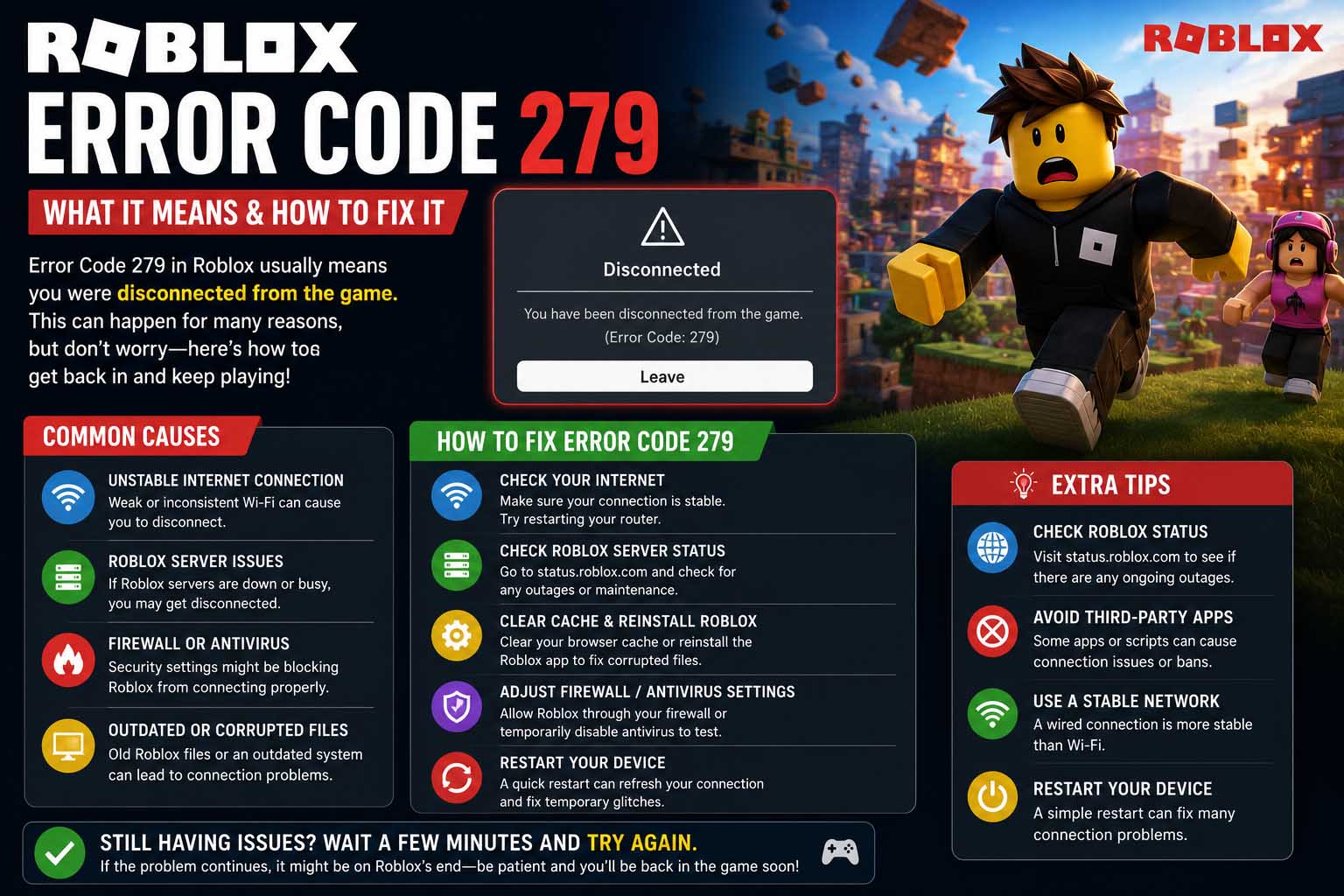
Error Code 279 is a connection error that prevents Roblox from successfully joining a game server.
You may see messages similar to:
- Failed to connect to the game.
- Error Code: 279.
- ID = 17 (or another connection ID).
- Connection attempt failed.
Unlike account-related errors, this one usually points to a networking problem between your device and Roblox.
What Does Error Code 279 Mean in Roblox?
Many players also wonder what does error code 279 mean in Roblox.
In simple terms, Roblox is unable to communicate properly with its servers.
Several things can interrupt that connection, including:
- Slow or unstable internet
- Firewall restrictions
- Antivirus software
- Browser issues
- Router settings
- VPN conflicts
- Temporary Roblox server problems
Because there are several possible causes, it’s best to work through the fixes one by one.
Common Causes of Roblox Error Code 279
Before changing settings, it’s useful to understand why the error appears.
Unstable Internet Connection
A weak or inconsistent connection is one of the most common reasons for Error Code 279.
Signs include:
- Long loading screens
- Frequent disconnects
- High latency
- Games failing to launch
If your connection struggles in multiple online games, learning how to lower ping in games can also improve overall online stability and reduce connection-related issues.
Firewall Blocking Roblox
Windows Defender Firewall or third-party security software may prevent Roblox from communicating with its servers.
This often happens after:
- Installing a new antivirus
- Updating Windows
- Changing firewall settings
If Roblox isn’t listed as an allowed application, connections may fail.
Browser Problems
Players using Roblox through a browser may encounter issues caused by:
- Corrupted cache
- Outdated browser versions
- Disabled cookies
- Problematic extensions
Trying another supported browser is often a quick way to determine whether the browser is responsible.
VPN or Proxy Services
VPNs sometimes interfere with Roblox connections.
Although VPNs improve privacy, they can also:
- Increase latency
- Trigger connection failures
- Route traffic through unstable servers
Disconnect your VPN temporarily and try launching Roblox again.
Router Configuration
Certain router settings may block the ports Roblox uses.
This is less common on home networks but can happen with:
- School networks
- Office networks
- Public Wi-Fi
- Strict parental controls
Roblox Error Code 279 Quick Fix Checklist
Before moving into advanced troubleshooting, try these simple solutions.
- Restart Roblox.
- Restart your computer or mobile device.
- Restart your modem and router.
- Check your internet connection.
- Disable your VPN.
- Update Roblox.
- Update your web browser.
- Temporarily disable antivirus software.
- Allow Roblox through your firewall.
Many players solve the problem without needing anything more complicated.
How to Fix Error Code 279 Roblox Step by Step
If the quick fixes didn’t work, continue with these solutions.
Restart Your Internet Connection
A fresh internet connection can resolve temporary network problems.
Steps:
- Turn off your modem and router.
- Wait about 30 seconds.
- Turn the modem back on.
- Turn on the router.
- Wait until all connection lights stabilize.
- Launch Roblox again.
This clears many temporary networking issues.
Check Roblox Server Status
Sometimes the issue isn’t on your end.
If Roblox is experiencing an outage or maintenance, players around the world may see connection errors.
Before changing your PC settings, check whether other players are reporting problems.
If many users are affected, waiting for Roblox to restore service is usually the only solution.
Allow Roblox Through Windows Firewall
Firewall restrictions are another common cause.
To allow Roblox:
- Open Windows Security.
- Select Firewall & network protection.
- Click Allow an app through firewall.
- Find Roblox in the list.
- Enable both Private and Public access.
- Save your changes.
If Roblox isn’t listed, manually add the application.
Temporarily Disable Antivirus Software
Some antivirus programs mistakenly block Roblox network traffic.
For testing purposes:
- Disable real-time protection temporarily.
- Launch Roblox.
- Join a game.
If the game works normally, create an exception for Roblox before turning your antivirus back on.
Never leave antivirus protection permanently disabled.
Browser Fixes for Roblox Players
If you’re launching Roblox from a web browser, these steps may help.
Clear Browser Cache
Old cache files occasionally interfere with Roblox.
Clear:
- Cached images
- Cookies
- Temporary files
Then restart the browser.
Disable Browser Extensions
Extensions such as:
- Ad blockers
- Script blockers
- Privacy tools
can sometimes prevent Roblox from loading correctly.
Disable them temporarily and test again.
Try Another Browser
If the problem continues, install another supported browser.
For example:
- Microsoft Edge
- Google Chrome
- Mozilla Firefox
If Roblox works in another browser, your original browser likely has a configuration issue.
Update Roblox and Windows
Running outdated software can cause compatibility problems.
Check for:
- Roblox updates
- Windows updates
- Graphics driver updates
- Browser updates
Although Error Code 279 is usually network-related, keeping your system updated reduces the chance of software conflicts.
Could Hardware Be the Problem?
Most of the time, no.
Unlike graphics errors or crashes, Error Code 279 rarely points to failing hardware.
If Roblox launches but closes unexpectedly after connecting, the issue may be different. In that case, troubleshooting guides covering why does my game keep crashing? can help identify hardware, driver, or software stability problems that go beyond simple connection errors.
Test Another Network
One of the fastest ways to isolate the issue is to try another internet connection.
For example:
- Mobile hotspot
- Friend’s Wi-Fi
- Another home network
If Roblox works immediately on another network, your original router or internet provider is likely causing the problem.
This simple test can save a lot of unnecessary troubleshooting.
Fix Roblox Error Code 279 on Different Devices
The exact troubleshooting steps can vary depending on where you play Roblox.
Windows PC
If you’re using the Roblox desktop app or browser version on Windows:
- Restart your computer.
- Install the latest Windows updates.
- Update your graphics drivers.
- Verify that your firewall allows Roblox.
- Restart your router.
- Close unnecessary background applications.
If the problem appeared after installing new software, temporarily uninstall or disable it to see if the connection improves.
Mac
Mac users should:
- Restart the Mac.
- Update macOS.
- Clear browser data if using the browser version.
- Check firewall settings under System Settings.
- Disable VPN software temporarily.
A clean restart often resolves temporary networking conflicts.
Mobile Devices
On Android or iPhone:
- Switch between Wi-Fi and mobile data.
- Restart the device.
- Update the Roblox app.
- Clear the app cache (Android).
- Reinstall Roblox if necessary.
If Roblox only fails on one network, the issue is likely related to your internet connection rather than your phone.
Change Your DNS Server
If your internet connection works but Roblox still refuses to connect, changing your DNS server may help.
Many players switch to public DNS services such as:
- Google Public DNS
- Cloudflare DNS
These services can improve reliability if your internet provider’s DNS servers are slow or unstable.
After changing your DNS settings, restart both your computer and your router before testing Roblox again.
Reset Network Settings
Windows includes several tools that can repair damaged network configurations.
Open Command Prompt as Administrator and run these commands one at a time:
ipconfig /flushdns
ipconfig /release
ipconfig /renew
netsh winsock reset
Restart your computer afterward.
These commands reset common networking issues without affecting your personal files.
Check Your Internet Speed
Roblox doesn’t require an extremely fast internet connection, but it does need a stable one.
If your connection frequently drops or experiences high latency, you may continue seeing Error Code 279.
A speed test can reveal:
- Download speed
- Upload speed
- Ping
- Packet loss
Packet loss is especially important because even a fast connection can disconnect if packets are consistently lost.
Advanced Troubleshooting
If none of the basic fixes worked, move on to more detailed checks.
Disable Proxy Settings
Proxy servers can interrupt Roblox connections.
On Windows:
- Open Settings.
- Go to Network & Internet.
- Select Proxy.
- Turn off any manual proxy configuration unless your network specifically requires one.
Check Router Security Settings
Some routers include advanced security features that accidentally block online games.
Review settings such as:
- Parental controls
- Device restrictions
- Content filtering
- Traffic filtering
- Firewall level
If you’re unsure, compare the settings with your router manufacturer’s recommended defaults.
Port Forwarding
Most home users don’t need to configure port forwarding.
However, if your network uses strict NAT settings or advanced firewall rules, allowing the ports Roblox uses may improve connectivity.
Only make router changes if you’re comfortable accessing your router’s settings.
Reinstall Roblox
If your installation has become corrupted, reinstalling Roblox can replace damaged files.
Steps:
- Uninstall Roblox.
- Restart your computer.
- Download the latest installer from the official Roblox website.
- Install the application again.
- Launch a game.
This process often resolves issues caused by incomplete updates or corrupted installation files.
When the Problem Isn’t Error Code 279
Sometimes players mistake other problems for Error Code 279.
If Roblox launches successfully but controls don’t respond, the issue may involve your keyboard instead of your internet connection. For example, if movement suddenly stops, troubleshooting guides for wasd keys not working can help determine whether the problem is related to input settings, drivers, or hardware.
Correctly identifying the symptom helps you avoid spending time on the wrong solution.
Tips to Prevent Roblox Error Code 279
While connection problems can’t always be avoided, these habits reduce the chances of seeing the error again.
- Keep Roblox updated.
- Install Windows updates regularly.
- Restart your router occasionally.
- Avoid unnecessary VPN connections while gaming.
- Use a stable wired connection whenever possible.
- Keep your browser and drivers updated.
- Leave enough free storage space on your device.
- Close applications that heavily use your internet bandwidth before launching Roblox.
A stable system and network make online gaming much smoother.
Frequently Asked Questions
What is Error Code 279 in Roblox?
Error Code 279 is a connection error that occurs when Roblox cannot establish communication between your device and a game server.
What causes Error Code 279?
The most common causes include:
- Internet connection issues
- Firewall restrictions
- Antivirus software
- Browser problems
- VPN conflicts
- Router configuration
- Temporary Roblox server outages
How do I fix Error Code 279 Roblox?
Start by restarting your router, updating Roblox, checking your firewall, disabling your VPN, clearing your browser cache, and testing another internet connection. If those steps don’t help, move on to DNS and network troubleshooting.
Can antivirus software cause Error Code 279?
Yes. Some antivirus programs mistakenly block Roblox’s network traffic. Creating an exception for Roblox often resolves the issue without reducing your overall security.
Is Error Code 279 caused by Roblox servers?
Sometimes. If Roblox is experiencing maintenance or an outage, many players may receive connection errors until service is restored.
Does reinstalling Roblox fix Error Code 279?
It can, especially if the installation has become corrupted. However, because this error is usually network-related, you should first check your internet connection, firewall, and router settings.
Get Back Into Your Favorite Roblox Experiences
Roblox Error Code 279 is usually frustrating, but it’s rarely permanent. In most cases, the problem comes down to a connection issue, a blocked application, or a network setting that prevents Roblox from reaching its servers.
Work through the fixes one step at a time, beginning with the simplest options like restarting your router, updating Roblox, and checking your firewall. If the issue continues, testing another network, resetting your network settings, or reinstalling Roblox can often identify the cause. A patient, step-by-step approach gives you the best chance of getting back into your favorite Roblox experiences without unnecessary guesswork.