
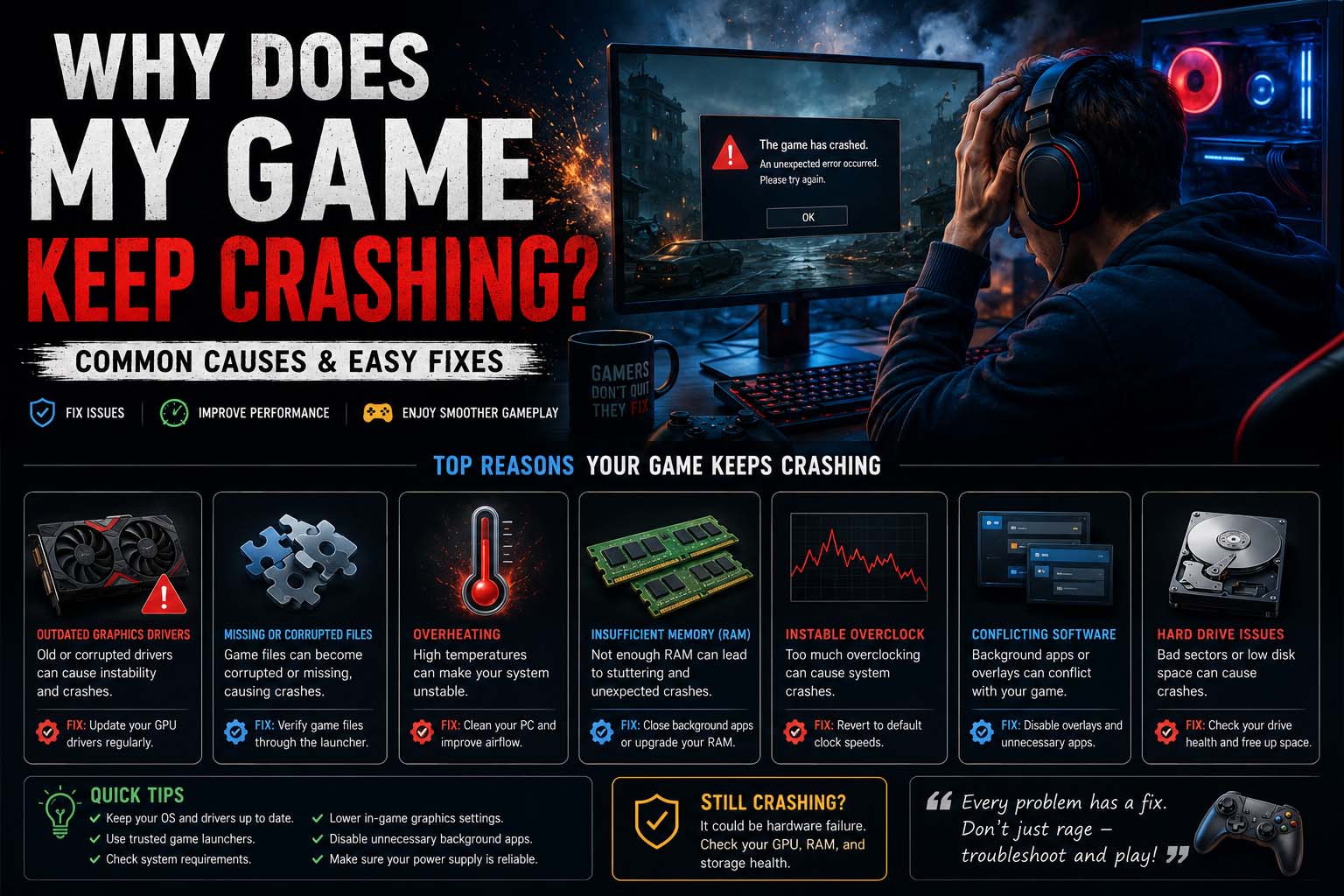
Few things are more frustrating than launching your favorite game only to have it crash minutes later. Whether you’re exploring an open-world adventure, competing in an online match, or finishing a difficult boss fight, unexpected crashes can quickly ruin the experience.
If you’ve been asking, “why does my game keep crashing?”Game crashes usually happen because of software conflicts, outdated drivers, hardware limitations, corrupted files, overheating, or unstable game updates.
This guide explains the most common causes and shows practical steps to help you get back into the game.
What Causes Game Crashes?
Games rely on your operating system, graphics drivers, hardware, and game files all working together.
Some of the most common causes include:
- Outdated graphics drivers
- Corrupted game files
- Insufficient RAM
- Overheating hardware
- Background applications
- Operating system issues
- Game bugs
- Hardware instability
Finding the exact cause often takes a little troubleshooting, but many problems can be solved in just a few minutes.
Quick Troubleshooting Checklist
Before trying more advanced solutions, work through these basic checks.
| Check | Why It Helps |
|---|---|
| Restart your device | Clears temporary software issues |
| Update the game | Fixes known bugs |
| Update graphics drivers | Improves compatibility |
| Verify game files | Repairs missing or damaged files |
| Close background apps | Frees system resources |
| Check available storage | Prevents loading problems |
| Monitor temperatures | Identifies overheating |
These simple steps solve a surprising number of crash problems.
Why Does My Game Keep Crashing on PC?
Many players search for why does my game keep crashing on PC because computers have more hardware combinations than consoles.
Common PC-specific causes include:
Outdated Graphics Drivers
Graphics drivers receive regular updates that improve compatibility with newly released games.
If your drivers haven’t been updated for several months, crashes become more likely.
Always download drivers directly from your GPU manufacturer’s official software.
Corrupted Game Files
Power outages, interrupted downloads, or storage errors can damage game files.
Most launchers allow you to verify file integrity, which automatically replaces damaged files.
Background Software Conflicts
Programs running in the background may interfere with games.
Examples include:
- Recording software
- RGB lighting utilities
- Overlay applications
- Antivirus scans
- Performance monitoring tools
Temporarily disabling unnecessary background programs can help identify conflicts.
Check Your Hardware Temperatures
Overheating is one of the most overlooked causes of game crashes.
As temperatures rise, your CPU or graphics card may reduce performance or shut down demanding applications.
Signs of overheating include:
- Loud cooling fans
- Sudden frame drops
- Random shutdowns
- Frequent crashes during demanding scenes
Cleaning dust from your computer and improving airflow often helps maintain stable temperatures.
Low Memory and Storage Problems
Modern games require significant system resources.
If your PC runs out of available RAM or storage space, crashes become more common.
Check that:
- Your storage drive has free space.
- Your RAM meets the game’s requirements.
- Virtual memory settings are functioning normally.
Running multiple heavy applications while gaming can also increase memory usage.
Why Does My Game Keep Crashing Mobile?
Players searching for why does my game keep crashing mobile often encounter different issues than PC users.
Mobile crashes may happen because of:
- Limited available storage
- Low RAM
- Outdated operating system
- Background applications
- Battery-saving modes
- Corrupted app data
Closing unused apps before launching a game often improves stability.
If problems continue, clearing the game’s cache or reinstalling the app may resolve corrupted files.
Why Does My Game Keep Crashing PS5?
If you’re wondering why does my game keep crashing PS5, the causes are usually related to software rather than hardware.
Common reasons include:
- Pending system updates
- Corrupted saved data
- Incomplete game updates
- Storage issues
- Temporary console software bugs
Restarting the console, installing the latest firmware, and rebuilding the database (when appropriate) often resolve persistent crashing.
Does Internet Connection Cause Crashes?
Poor internet usually causes:
- Disconnects
- Lag
- Matchmaking problems
- Rubber-banding
It doesn’t usually cause the game application itself to crash.
If you’re experiencing both lag and crashes, improving your network connection may still help create a smoother experience. Players looking to improve online performance can also learn how to lower ping in games to reduce latency during multiplayer matches.
Are Game Updates Responsible?
Sometimes they can be.
Developers regularly release updates that:
- Fix bugs
- Add content
- Improve performance
- Balance gameplay
Occasionally, a new patch may introduce unexpected issues on certain hardware configurations.
If crashes begin immediately after an update, checking community forums or official support channels can confirm whether other players are experiencing similar problems.
Common Mistakes Players Make
Many players accidentally make troubleshooting harder.
Avoid these mistakes:
Changing Too Many Settings at Once
If you adjust several settings together, it becomes difficult to identify what actually fixed—or caused—the problem.
Change one setting at a time and test the game before moving to the next adjustment.
Ignoring Official Patch Notes
Developers frequently acknowledge known crash issues.
For live-service games, players waiting for large updates often check what time does fortnite update so they know when maintenance ends and bug fixes become available.
Graphics Settings That May Help
Reducing graphics settings doesn’t just improve frame rates.
It can also improve stability by reducing the workload placed on your GPU and CPU.
Try lowering:
- Texture quality
- Shadow quality
- Ray tracing
- View distance
- Anti-aliasing
These adjustments are especially useful if your hardware is close to the game’s minimum requirements.
Advanced Fixes for Persistent Crashes
If the basic troubleshooting steps didn’t solve the problem, it’s time to investigate a little further.
Verify Game Files
Most modern game launchers include a file verification feature.
This scans your installation and replaces damaged or missing files without requiring a complete reinstall.
If a crash started after an interrupted download or update, this should be one of your first troubleshooting steps.
Reinstall the Game
Sometimes game files become corrupted beyond what a verification scan can repair.
A clean installation can remove damaged files, outdated settings, and installation errors.
If possible, back up your save files before uninstalling.
Update Windows or Your Operating System
Game developers regularly optimize their titles for newer operating system updates.
Running an outdated version of Windows or an older mobile operating system can sometimes create compatibility problems.
Install available updates, restart your device, and test the game again.
Disable Overlays
Several applications place overlays on top of games.
Examples include:
- Discord
- Steam
- Xbox Game Bar
- GeForce Experience
- MSI Afterburner
- AMD Software overlays
While these tools are useful, they occasionally conflict with certain games.
Temporarily disabling overlays is an easy way to rule them out.
Remove Overclocking
Returning hardware to its default settings is a useful troubleshooting step.
Even a stable overclock can become unreliable after:
- Driver updates
- BIOS updates
- Hot weather
- New game releases
Testing at stock settings helps determine whether overclocking is contributing to the crashes.
Check Available Storage
Games often need additional free space for updates, temporary files, and shader compilation.
A nearly full drive can sometimes lead to:
- Longer loading times
- Installation failures
- Update errors
- Unexpected crashes
Keeping extra free storage available helps maintain smoother performance.
If Crashes Started After an Update
Sometimes a game runs perfectly until a new patch arrives.
When this happens:
- Read the official patch notes.
- Visit the game’s support page.
- Check whether other players report similar problems.
- Install any available hotfixes.
Players often search what time is the fortnite update before downloading a major patch because developers frequently release stability improvements alongside new content.
Console-Specific Troubleshooting
Console crashes are less common than PC crashes, but they can still happen.
Helpful steps include:
- Restart the console completely.
- Install system software updates.
- Update the game.
- Check available storage.
- Rebuild the console database if recommended by the manufacturer.
If multiple games crash consistently, the problem may be related to the console rather than one specific title.
Is the Problem Related to a New Season?
Large seasonal updates sometimes introduce temporary issues while developers work on additional fixes.
For live-service games, many players also check what time does the new fortnite season come out because major seasonal releases often include engine changes, new content, and patches that can affect performance during the first few days.
If crashes begin immediately after a new season launches, waiting for a follow-up hotfix may resolve the issue.
When Only One Game Crashes
If every other game runs normally, the issue is probably specific to that title.
In that situation, try:
- Verifying game files.
- Resetting graphics settings.
- Removing mods.
- Updating the game.
- Checking official forums.
- Reinstalling the game.
These steps usually isolate game-specific problems without affecting the rest of your system.
Account and Server Issues
Although server problems rarely cause an application to crash, they can sometimes create login loops or loading failures.
For online games, confirm that:
- Servers are online.
- Maintenance has ended.
- Your account isn’t restricted.
- Your internet connection is stable.
Checking official announcements before troubleshooting your hardware can save time.
Frequently Asked Questions
Why does my game keep crashing on PC?
The most common causes are outdated graphics drivers, corrupted game files, overheating, insufficient memory, software conflicts, or unstable hardware settings.
Why does my game keep crashing mobile?
Mobile crashes are often caused by limited storage, low available memory, outdated operating systems, corrupted app data, or background applications using too many resources.
Why does my game keep crashing PS5?
Common causes include incomplete game updates, outdated console software, corrupted data, or temporary software bugs. Keeping both the console and games fully updated usually helps.
Can low RAM cause games to crash?
Yes. If your system doesn’t have enough available memory, games may close unexpectedly or become unstable during demanding scenes.
Should I reinstall my game?
If verifying game files and updating drivers don’t solve the problem, reinstalling the game is often an effective next step.
Can third-party tools cause crashes?
Yes. Mods, overlays, recording software, and some hardware monitoring applications can occasionally interfere with game stability.
Keep Your System Ready for Gaming
If you continue asking yourself “why does my game keep crashing”, remember that most problems come down to software conflicts, damaged files, outdated drivers, overheating, or hardware limitations rather than permanent hardware failure.
Keeping your system updated, monitoring temperatures, maintaining free storage space, and troubleshooting one change at a time will solve many crash-related problems. If a particular title continues to crash while everything else runs normally, checking official support resources can often provide game-specific fixes. Players of online titles can also use tools such as wow character lookup to confirm account and character information when troubleshooting issues related to game services, although character lookup tools themselves won’t resolve application crashes.